---
title: Inspect documents and requests in Discover
description: Find a value in your results, read every field of a document in the document flyout, and check the request behind your results in Discover.
url: https://www.elastic.co/docs/explore-analyze/discover/inspect-documents
products:
- Elastic Documentation
- Kibana
applies_to:
- Elastic Cloud Serverless: Generally available
- Elastic Stack: Generally available
---
# Inspect documents and requests in Discover
When a table row doesn't tell you enough about a result, **Discover** offers several ways to look closer: finding a value across all loaded results, reading every field of a document, and checking the request that produced the results.
## Before you begin
Open **Discover** and run a query that returns results.
## Find and highlight values in the table
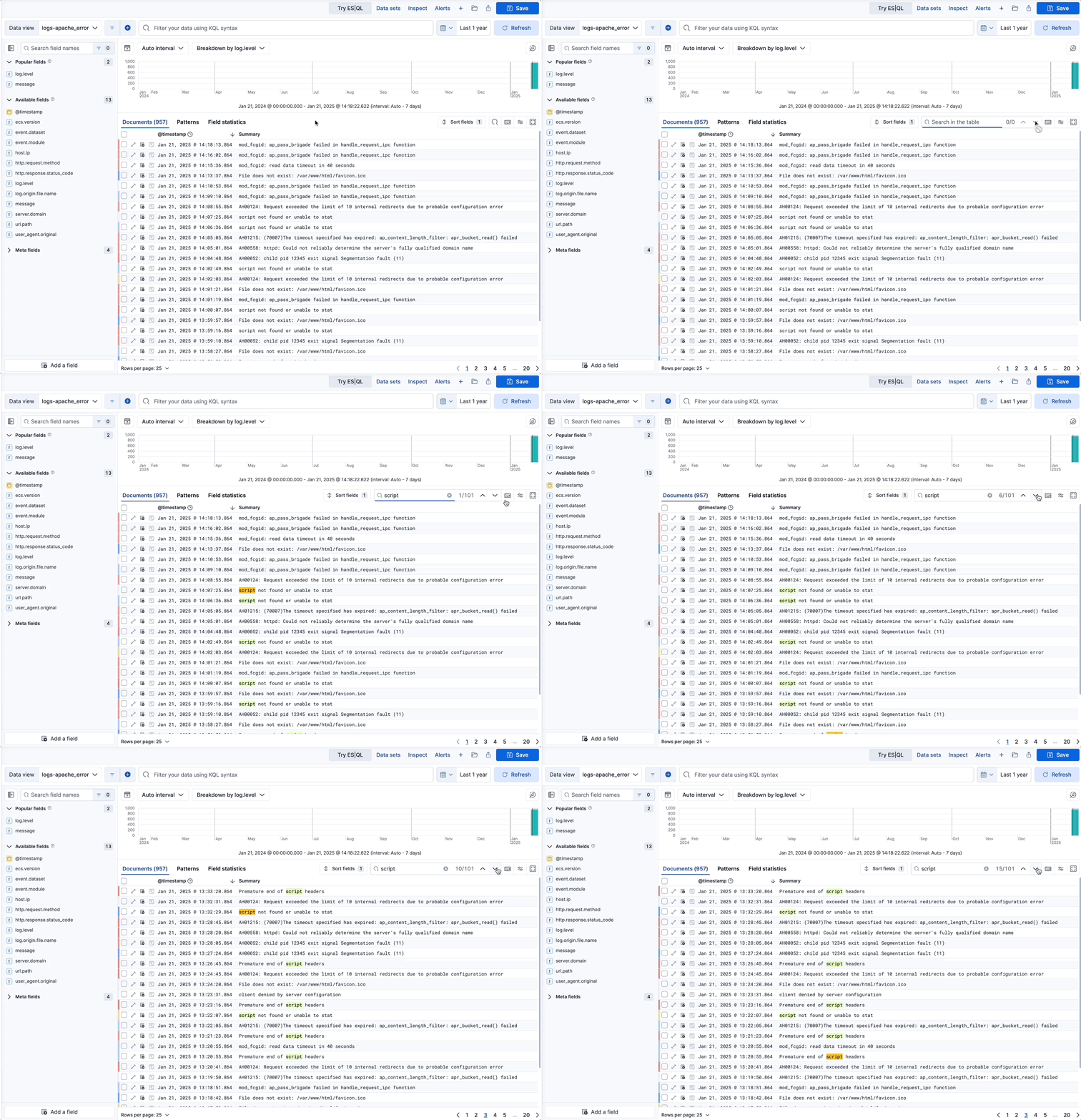
To find a value anywhere in the results loaded in the table, including rows you haven't scrolled to, select **Find in table** in the table toolbar and enter your text. **Discover** highlights the matches.
The in-table search looks for all matching values in all results and pages loaded in the table. In classic mode, the number of results loaded depends on the [Sample size](/docs/explore-analyze/discover/document-explorer#document-explorer-sample-size). In ES|QL mode, it depends on the rows that your query returns, so the `LIMIT` of your query sets the ceiling. If you load more results, the search automatically updates and reflects the new number of matching values, if any more are found.
To go to the next match, press **Enter**. To go to the previous match, press **Shift + Enter**.
## Look inside a document
When you need every field of a result, open the document in the document flyout.
Elastic Cloud Serverless: Generally available Elastic Stack: Planned To filter or copy values in the table without opening the flyout, switch **View mode** to **JSON**. Refer to [View documents as JSON](/docs/explore-analyze/discover/document-explorer#document-explorer-view-mode).
1. In the document table, select `maximize` **View details** (**Toggle dialog with details** in Elastic Stack 9.5 and earlier) to show document details.

2. Scan through the fields and their values. To narrow the list or act on a value, use any of the following:
- To filter results by a field or value, hover over it in the **Field** or **Value** column and select one of the actions that appear.
- To narrow the list of fields, use the search field to look for specific fields or values, or filter by field type with the options next to it.
- To keep a field visible while you filter the list, pin it from the first column.
- To hide fields that have no value, turn on the **Hide null fields** toggle.
- Elastic Stack: Generally available from 9.0 to 9.3 In these versions, the toggle is available only in ES|QL mode.
You can restrict the fields listed in the detailed view to the fields that you explicitly added to the **Discover** table, using the **Selected only** toggle. The toggle is unavailable until you add at least one field as a column. **Selected only** isn't available from the **View single document** page.
In classic mode, you can also [open the document on a page of its own, or view the documents that occurred before and after it](#open-single-document).
To copy a link that reopens this document, select `link` **Copy link** in the flyout header. Refer to [Share a link to a document](/docs/explore-analyze/discover/copy-and-share-documents#share-a-document-link).
## Open a document on its own page or view its neighbors
In classic mode, you can open a document on a page that you can bookmark and share, or view the documents that occurred before and after it. These actions aren't available in ES|QL mode, where the document flyout is the way to read a document.
To use them, open **Discover** in classic mode and run a search that returns results. If **Discover** opens in ES|QL mode, refer to [Switch to Discover's classic mode](/docs/explore-analyze/discover/switch-esql-mode#revert-to-classic-mode). To view the surrounding documents, select a data view that has a time field.
1. In the document table, select `maximize` **View details** (**Toggle dialog with details** in Elastic Stack 9.5 and earlier) on the row of the document you want to look at.
2. In the flyout, select one of the following:
- **View single document** to open the document on its own page. You can bookmark the page and share its link.
- **View surrounding documents** to inspect the documents that occurred before and after this document. Only [pinned filters](/docs/explore-analyze/discover/search-and-filter-classic#filter-pill-actions), the filters you pinned across apps, remain active in this view.
**Result:** **Discover** opens the document on a page that you can bookmark, or shows the documents that occurred before and after it.
## Inspect the request behind your results
The request **Inspector** is available in **Discover** and for all **Dashboards** visualization panels that are built from a query. The available information can differ based on the request.
1. Open the **Inspector**:
- If you're in **Discover**:
- Elastic Cloud Serverless: Generally available Elastic Stack: Generally available since 9.4 Hover over the active tab and select the `boxes_vertical` **Actions** icon, then select **Inspect**. You can also select **Inspect tab** from the application menu to inspect the active tab.
- Elastic Stack: Generally available from 9.0 to 9.3 Select **Inspect** from the application menu.
- If you're in **Dashboards**, open the panel menu and select **Inspect**.
2. Open the **View** dropdown, then select **Requests**.
3. Several tabs with different information can appear, depending on nature of the request and your deployment type:
Some visualizations rely on several requests. From the dropdown, select the request you want to inspect.
- **Statistics**: Provides general information and statistics about the request. For example, you can check if the number of hits and query time match your expectations. If not, this can indicate an issue with the request used to build the visualization.
- **Clusters and shards**: Lists the Elasticsearch clusters and shards queried to fetch the data, including for [cross-cluster search](https://www.elastic.co/docs/explore-analyze/cross-cluster-search) queries. Use this tab to verify that the request ran correctly. This tab is not available for Vega visualizations. In Serverless, this tab appears only when your project has no linked projects.
- Elastic Cloud Serverless: Generally available **Projects**: Replaces **Clusters and shards** when your project has linked projects for [cross-project search](https://www.elastic.co/docs/explore-analyze/cross-project-search). Lists the projects the request searched, so you can check which projects your query reached. Each row shows the project's status, response time, provider, region, and tag count. Expand a row to see its shard breakdown. This tab is not available for Vega visualizations.
- **Request**: Provides a full view of the request, which you can copy or **Open in Console** to refine, if needed.
- **Response**: Provides a full view of the response returned by the request.
## Next steps
- To compare several results side by side, refer to [Compare documents in Discover](https://www.elastic.co/docs/explore-analyze/discover/compare-documents).
- To copy a link to a document, refer to [Copy results and share links to documents in Discover](https://www.elastic.co/docs/explore-analyze/discover/copy-and-share-documents).